
How to Import a Character into BUG Clicker (.cvclk)
Add a .cvclk character to BUG Clicker on Windows or Mac: open settings, drop the file into the Share tab, then show it from the Characters tab.
Last updated: 2026-10-31
A BUG Clicker character comes as a .cvclk file: one file with its pictures, name and lines. You add it from BUG Clicker's own settings. It takes about 15 seconds and works with every version of the app.
Add it to BUG Clicker in 5 steps
1Right-click your pet on the desktop and choose Open settings…. No pet on screen? Click the BUG Clicker icon in the taskbar tray at the bottom right (it may hide under the ^ arrow).
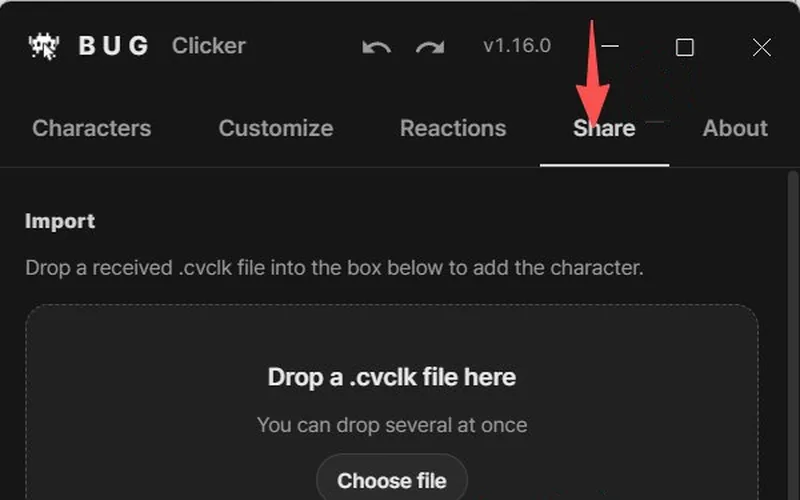
2Open the Share tab.
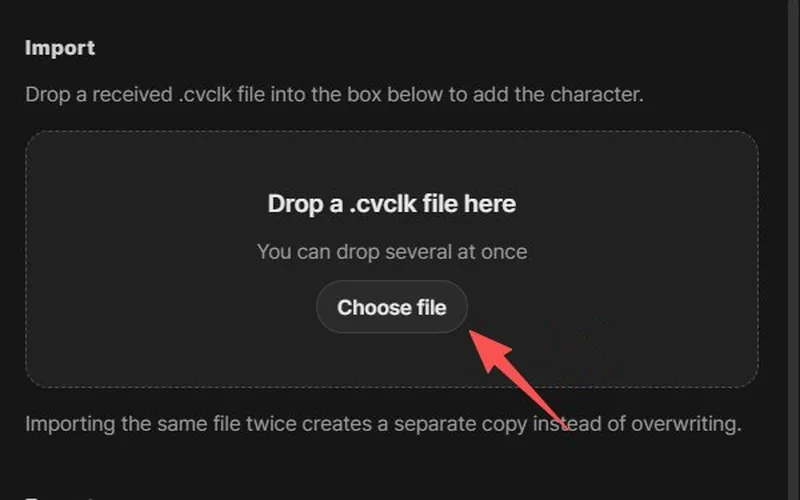
3Drag the .cvclk file into the box that says Drop a .cvclk file here (or click Choose file), then click Import.
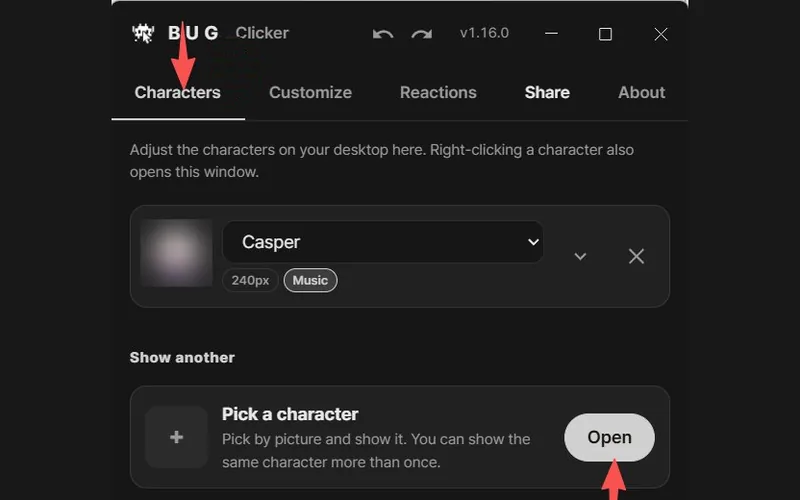
4Not on your desktop yet? Open the Characters tab and click Open next to Pick a character.
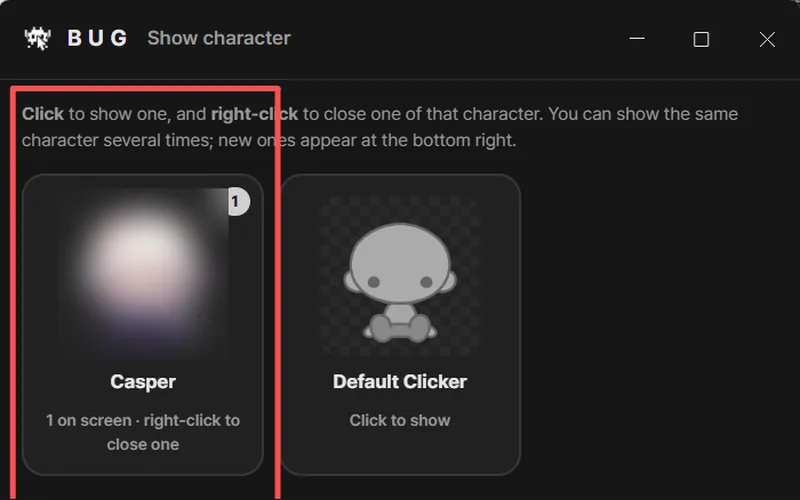
5In the Show character window, click your pet to put it on the desktop. Right-click its card to close one.
Screenshots: BUG Clicker 1.16, English, shared by @NEKOYAMAMONO on X
Tip: no need to dig through folders. Drag the file straight from your browser's downloads list into the box.
- Works with every BUG Clicker version. No update needed.
- Importing adds a new character. It never replaces the ones you already have.
- BUG Clicker set to another language? The buttons are in the same places.
If the character doesn't show up
- Imported, but it isn't on the desktop? Importing adds it to your list. Open the Characters tab, click Open next to Pick a character, then click its card in the Show character window.
- Check the file ends in .cvclk. Some browsers add
.jsonor put it in a.zip. Unzip it first; BUG Clicker also accepts.jsonfiles exported this way. - Nothing happened after dropping? Click Choose file in the same box and pick the file instead. Then click Import in the window that opens.
- "Locked by its creator"? That file was exported with protection on. Only BUG Clicker can open it, and only the creator can change it.
- It imported but doesn't talk? Open the character in settings and turn on its speech bubble.
More fixes: BUG Clicker troubleshooting.
Have a PSD instead?
Open Character Studio, then Images → Load PSD. A PSD only carries the pictures; you add the name and lines in BUG Clicker. Not sure your PSD will load? Run it through the free PSD checker first.